
AI Automation
Google Drive Shared Drive Automation Missing Files: What to Test
Why document automations miss shared-drive files that My Drive tests find, and the search and change-feed coverage checks to put in your acceptance record.
The free 30-minute AI Operations Audit is a conversation about a normal week in your business and where the work piles up. We find the one change that would give you the most time back and send you a plain-English plan for it. No forms and no pitch.
Book a free AI audit
Patrick Gibbs
A file automation can miss shared-drive documents because Google Drive only returns them when the app declares shared-drive support and asks for them, and because shared-drive change feeds are scoped by drive. Add search scope, per-drive change tracking and composite change identity to the acceptance record, then test with known files.
A document automation that works in a demo and then “loses” files is usually a coverage problem, not an intelligence problem. The owner sees a folder full of signed contracts. The workflow sees only part of it. This guide explains why that happens with Google Drive shared drives and what to write into the acceptance record so the gap is tested before launch.
Why shared-drive files go missing
Google documents that shared drives follow different organization, sharing and ownership models from My Drive, so an app must implement shared-drive support explicitly. A workflow built and tested only against My Drive can pass every check and still never see files stored in a shared drive.
Most small businesses start with files in one person’s My Drive. As the team grows, they move client folders into shared drives so documents survive staff changes. The automation, often built earlier, keeps its original assumptions.
Here is an illustrative case. A bookkeeping firm tests an intake workflow with five sample invoices in the builder’s My Drive. Everything is filed and logged correctly. In production, the client folders sit in shared drives, and the workflow reports no new documents for those clients. Nothing errors. The log is simply quiet.
That quiet is the risk. A missing file produces no failure message, so the first signal is often a client asking why a document was never processed.
What “missing” can mean
- Not searchable: the file exists but never appears in query results.
- Not announced: the file appears in search but its creation or edit never reaches the change feed.
- Not attributable: a change is recorded but cannot be matched to the drive it came from.
Each of these has a different cause and a different test, so the acceptance record should name all three.
The two flags that decide what search returns
Two request flags control inclusion. Per Google’s documentation, includeItemsFromAllDrives decides whether shared-drive items appear in results, and supportsAllDrives declares that the app handles both kinds of storage. Neither flag grants permission, so the connected account still needs access to each drive.
According to Google’s shared drive guide, when includeItemsFromAllDrives is absent or false, shared drive items are not returned. When supportsAllDrives is false, shared drive items are not included in the response. A builder who copies a basic list-files example can ship a workflow with both off.
Two cautions keep this honest:
- Setting the flags does not make a confidential document visible. Access still comes from the account’s membership in the drive.
- A search that returns results proves little. It may be returning only the My Drive half of the picture.
This is why a spreadsheet-driven tracker can look healthy while quietly undercounting. If your tracking lives in Sheets, the Google Sheets automation consultant guide covers how to scope that layer.
Change feeds and composite identity
Shared-drive changes are tracked per drive. Google’s documentation says a driveId returns changes for one shared drive, and that a specific change needs both the drive ID and the change ID as its identifier. Store both together, or checkpoints from different drives can be confused.
Search finds what exists now. A change feed tells an automation what happened since the last run, which is how most “new file arrives, start the workflow” triggers work. Per the same Google guide, when a driveId is specified, change IDs refer to changes within that shared drive. To refer to one shared drive change, you use the shared drive ID and the change ID together.
Two practical consequences follow:
- One checkpoint per drive. A single saved “last change” value cannot represent several drives. Store a checkpoint for each drive in scope.
- Composite keys for dedupe. If the workflow de-duplicates by change ID alone, two drives can produce clashing identifiers. Key records by drive ID plus change ID.
Sync checkpoints can also expire or reset in other Google services. Our Google Calendar 410 sync token recovery test shows the same discipline: define what the workflow does when its saved position is no longer usable, and test that path on purpose.
What to put in the acceptance record
Add a short coverage section to the document workflow acceptance record. It should list each shared drive in scope, the search flags used, the change checkpoint per drive, and a planted test file for each. Passing means every planted file is found by search and by the change feed.
The table below is an editorial proposal, not a vendor requirement. Adjust it to your drives.
| Record item | What to write down | Pass condition |
|---|---|---|
| Drives in scope | Name and ID of each shared drive, plus My Drive if used | Owner confirms the list is complete |
| Search flags | Whether both inclusion and support flags are set on every list call | Flags present in the configuration, checked by reading it |
| Access | Which account connects, and its role in each drive | Account can open the planted file |
| Planted search test | One labeled test file per drive | Found by the next search run |
| Change checkpoint | Stored value per drive, not one global value | Each drive has its own saved position |
| Change identity | Key used for dedupe | Drive ID and change ID together |
| Edit test | Rename or edit each planted file | Change appears and triggers once |
| Reset behavior | What happens if a checkpoint is lost | Documented rerun without duplicates |
Run the planted-file tests after any change to permissions, new drives or a connector update. Delete the test files afterward and note that in the record.
For the wider record this section belongs in, see our guide to document workflow automation for small business. If you are not sure which workflows deserve this level of testing, the automation readiness assessment is a reasonable first pass.
Questions to ask a builder
- Which drives did you test against, and were any of them shared drives?
- Where is the change checkpoint stored, and is it one value or one per drive?
- What happens to files that arrived while the workflow was off?
A builder who cannot answer these has not tested coverage. Our overview of what to look for in an AI automation agency for SMBs lists other proof worth asking for.
When this test is not the right fix
This test covers visibility, not correctness. A workflow can find every shared-drive file and still misfile, duplicate or expose documents. Skip the coverage record if the business keeps all documents in one My Drive and has no plan to move them; the effort fits only where shared drives hold live work.
Passing the coverage checks does not ensure the workflow classifies documents properly, respects confidentiality or handles large volumes. Those need their own tests. Also, the record above describes editorial acceptance checks. It does not replace Google’s current documentation, which can change, so have the builder confirm parameter behavior against it at build time.
If your firm handles sensitive client material, decide who may connect an automation account to each drive before widening any scope. Coverage and permission are separate questions, and the second one is yours to answer.
Frequently Asked Questions
Why can a file automation miss shared-drive documents when My Drive searches work?
Shared drives use a different organization, sharing and ownership model, and Google states that apps must implement support for them. If the inclusion and support flags are off, shared drive items are not returned, while My Drive results still appear normal.
Do the shared-drive flags give the automation access to every file?
No. They control whether shared drive items are included in results, not who may see them. The connected account still needs membership or access in each drive, and confidential documents stay restricted by those permissions.
Why does a change ID need a drive ID?
Per Google’s documentation, change IDs from a shared drive query refer to changes within that drive. To identify one specific change, you need both the shared drive ID and the change ID. Storing only the change ID can cause collisions across drives.
How do I test coverage without touching client files?
Plant a clearly labeled test file in each shared drive in scope, confirm search and the change feed both report it, edit it, then remove it. Record the results in the acceptance record so the test can be repeated after changes.
Does this apply to every document workflow?
It applies when documents live in shared drives. If everything sits in one My Drive, the shared-drive checks add little. Review where files actually live before deciding how much testing the workflow needs.
Patrick Gibbs
AI Automation Expert
Patrick Gibbs helps professional practices implement AI automation that captures more leads, books more appointments, and scales without adding overhead. He's the founder of Epiphany Dynamics and creator of the AI Front Desk system.
Related Solutions
Build this into a real workflow
Related Posts
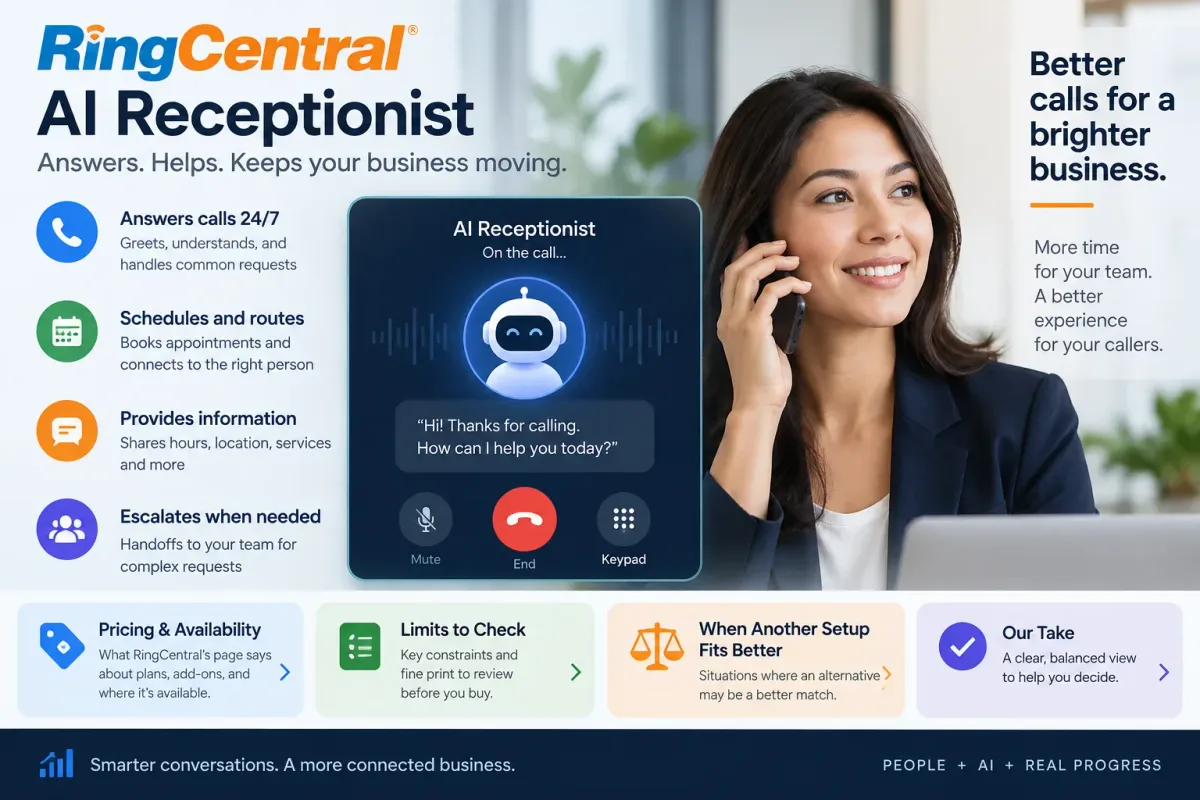
RingCentral AI Receptionist: A Fair Buyer's Overview
What RingCentral says its AI Receptionist does on calls, what its page says about pricing and availability, limits to check, and when another setup fits.
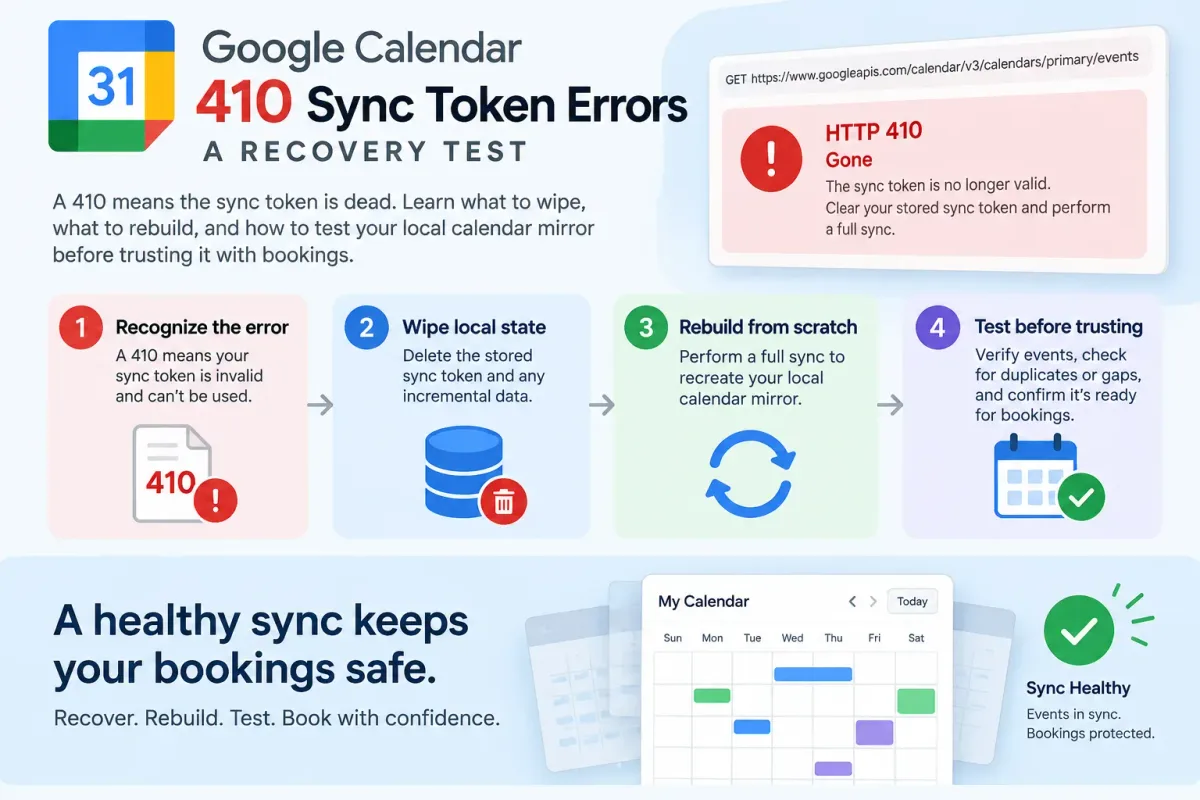
Google Calendar 410 Sync Token Errors: A Recovery Test
A Google Calendar 410 means the sync token is dead. Learn what to wipe, what to rebuild, and how to test your local calendar mirror before trusting it with bookings.
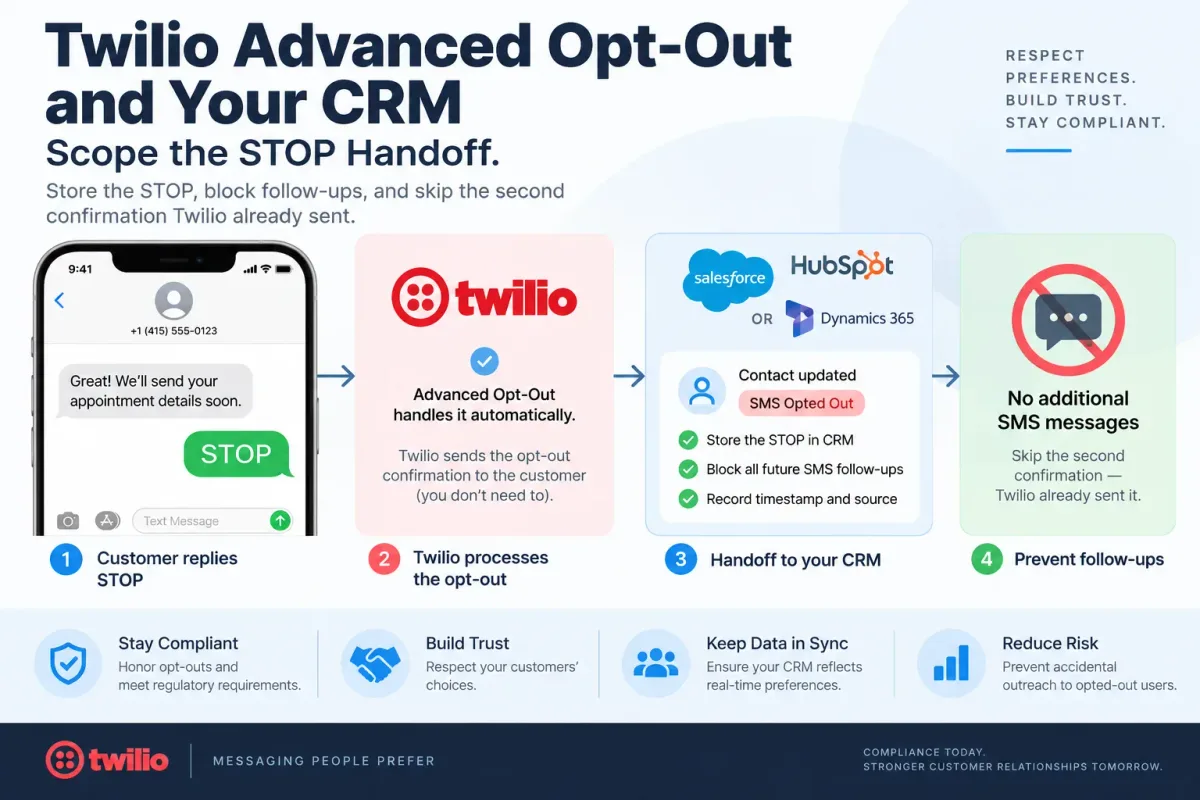
Twilio Advanced Opt-Out and Your CRM: Scope the STOP Handoff
How to scope a Twilio Advanced Opt-Out to CRM handoff: store the STOP, block follow-ups, and skip the second confirmation Twilio already sent.